¶ Connect to client Wi-Fi network
This page will explain how to connect your OpenWrt device to another Wi-Fi network by using its own radio. Due to technical limitations, your OpenWrt device will create its own subnet (in the example below it's 192.168.2.x while the Wi-Fi router's subnet is 192.168.1.x ) just as it would when connected to a modem, your OpenWrt device and devices connected to it will be able to reach the Internet, but won't see devices connected to the other Wi-Fi/router).
If you want to actually set up a Wi-Fi repeater or keep devices connected to this device in the same subnet as the devices connected to the other router, see either
- Wi-Fi Extender/Repeater with WDS
- or if WDS is not supported on both your devices, Wi-Fi Extender/Repeater with relayd
¶ Web interface instructions
Refreshed with 21.02 LuCI images.
As said above, the LAN interface must be set in a different subnet than the Wi-Fi network you are connecting to. In our example the Wi-Fi network we are connecting to is using 192.168.1.x addresses, so we will need to change the IP address of the LAN interface first to 192.168.2.1
/*** old LEDE17 image 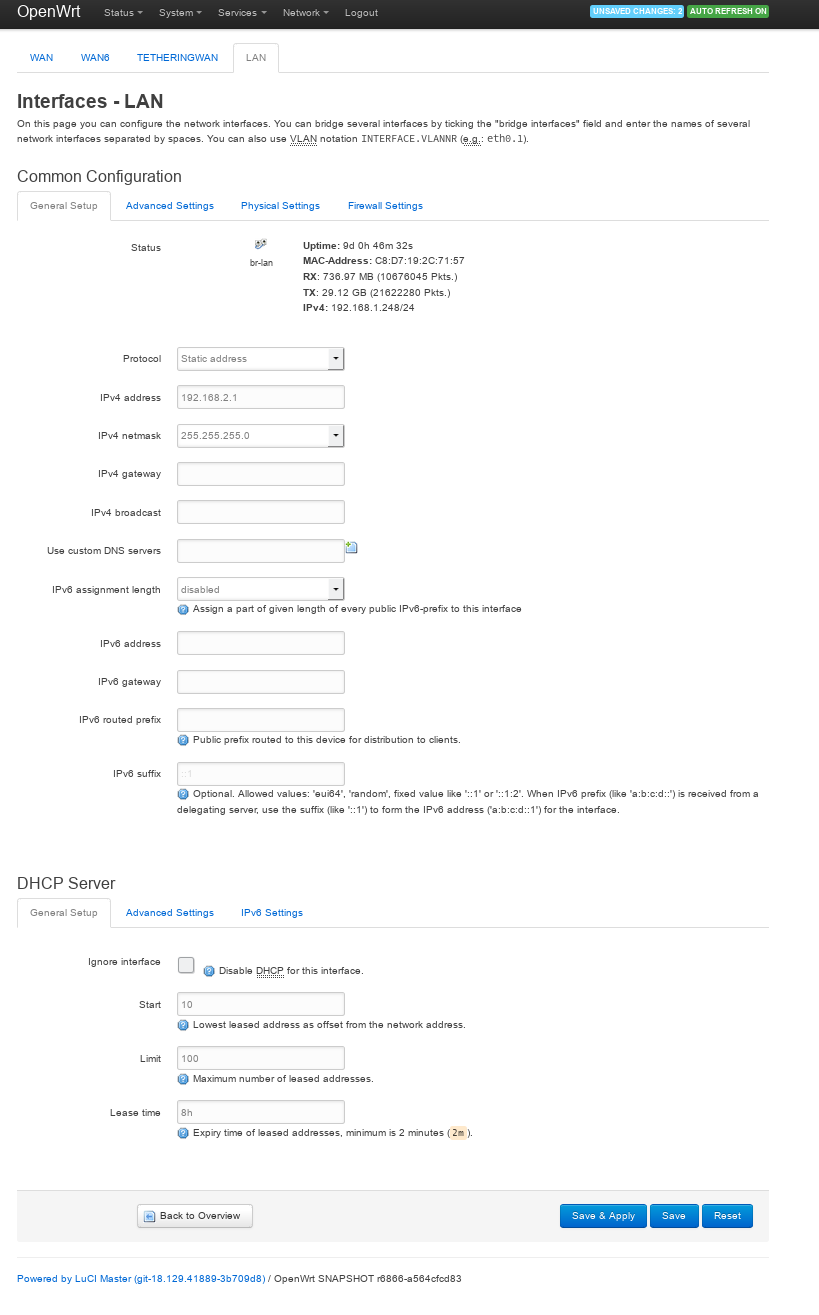
Set LAN as static address 192.168.2.1 Apply the setting change.
***/
The LAN interface must be set in a different subnet than the Wi-Fi network you are connecting to.
- Do NOT wire the router to your main router.
- Reset the router to return to default openwrt settings.
- Connect a computer to a LAN port and log into LuCI web UI at 192.168.1.1.
- Set LAN protocol as static address (default setting)
- Assign an IP address in a different subnet (e.g. 192.168.2.1). Click Save.
- Click Save and Apply.
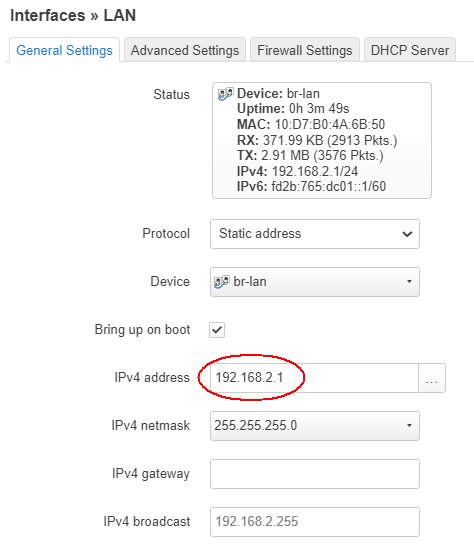
* Disconnect and connect again computer to the device to force change of IP address.
We will now set up the client Wi-Fi network, the configuration needed to connect to another Wi-Fi network.
Once you are logged into the router,
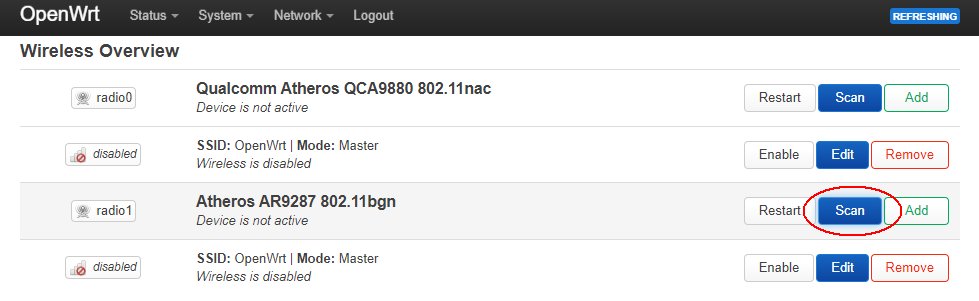
* go in the wireless networks page, and click on **Scan** button.
/*** old LEDE17 image 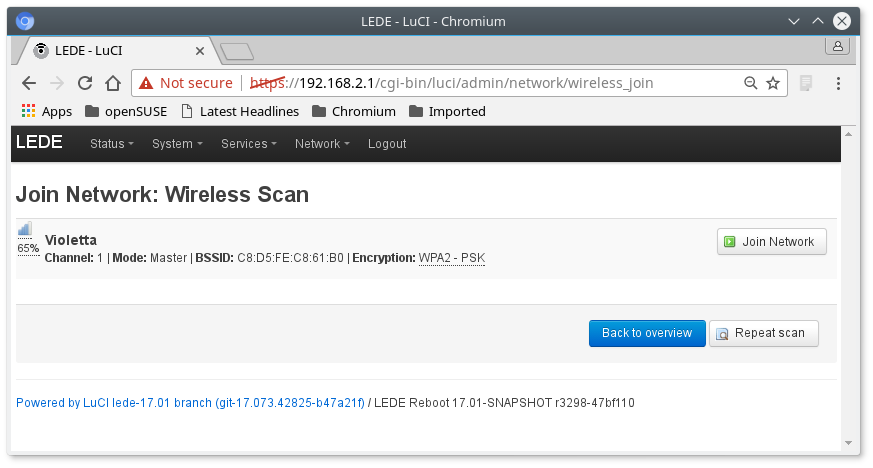
***/
* Choose the Wi-Fi network you want to connect to from the page and click "Join Network".\\

/*** old LEDE17 image 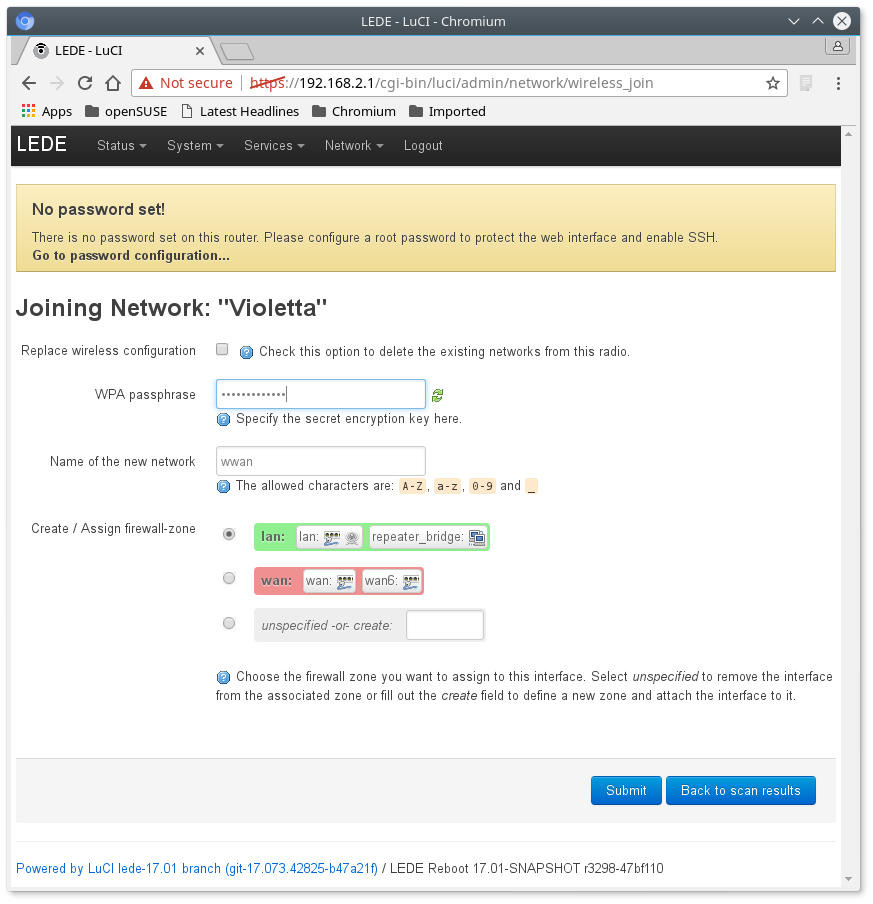
***/
 * Recommend to tick the 'Replace wireless configuration' to delete the wireless access point (Master) for the chosen radio.
 * Enter the wifi password.
 * The firewall zone should already be set to wan/wan6 (default).
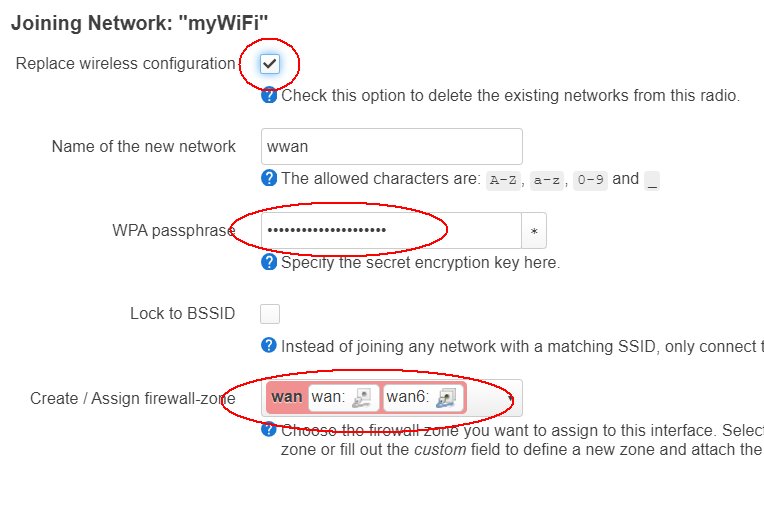
 * If there is no *wan* firewall zone you need to create it, don't save the Wi-Fi configuration.  Go to bottom of this section describing how to create *wan* firewall zone.
 * Enter the Wi-Fi password, leave the "name of new network" as "wwan" and select **wan** firewall zone.
 * Click Save.
/*** lede17 image 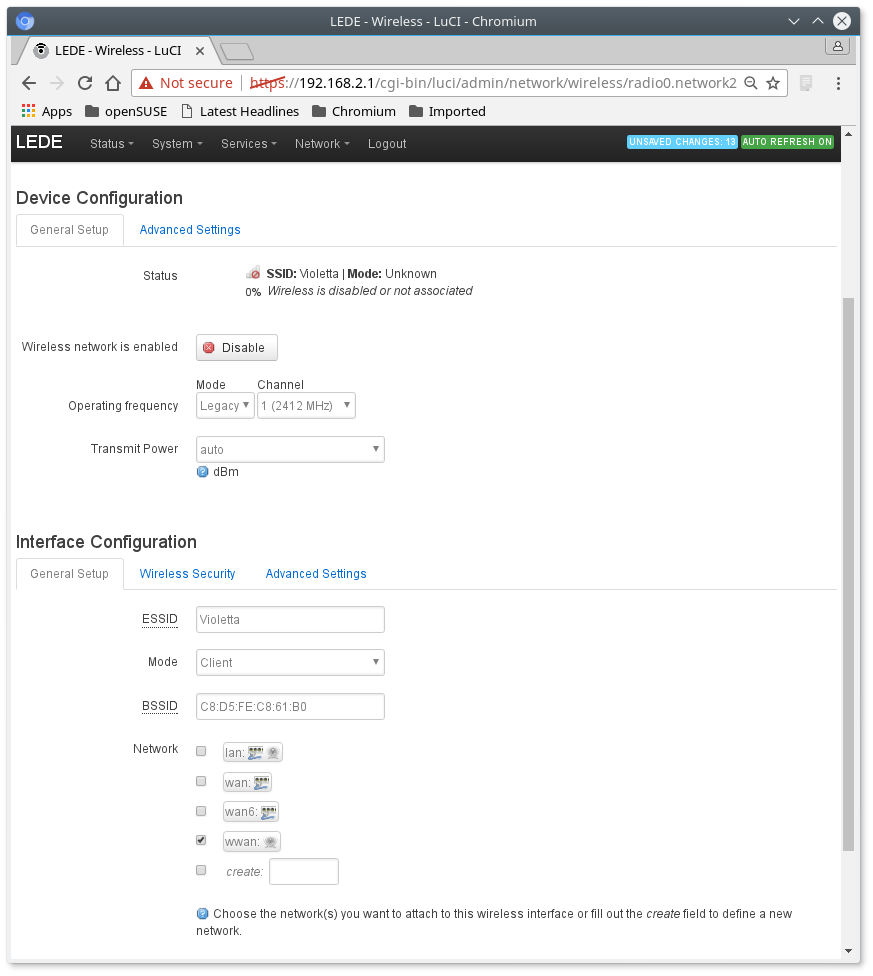
***/
You will land in the client Wi-Fi settings page. Edit as required.
The most important settings are on the Operating Frequency line.
- Set the Mode to Legacy if you are connecting to a Wi-Fi g network, or N if you are connecting to a Wi-Fi n (and so on).
- Set the Width to the same value that you set on the Wi-Fi you are connecting to (to avoid bottlenecking the connection for no reason).
- Do NOT change the wifi channel number !
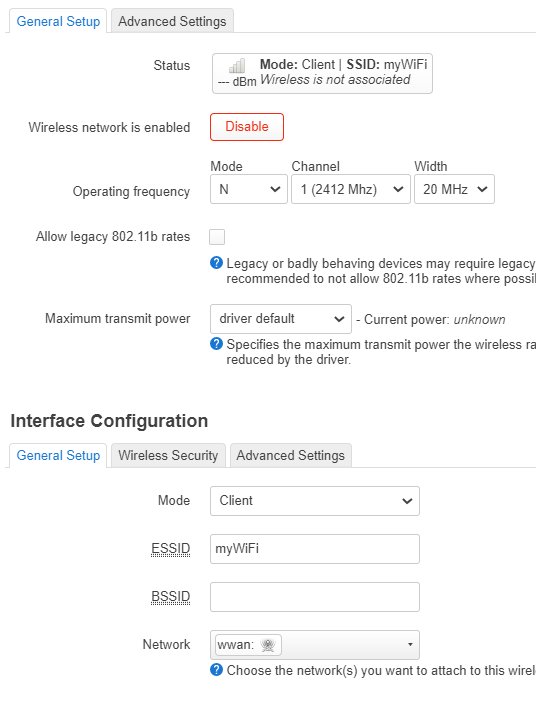
Press Save
Press Save & Apply.
Configuration is now complete.
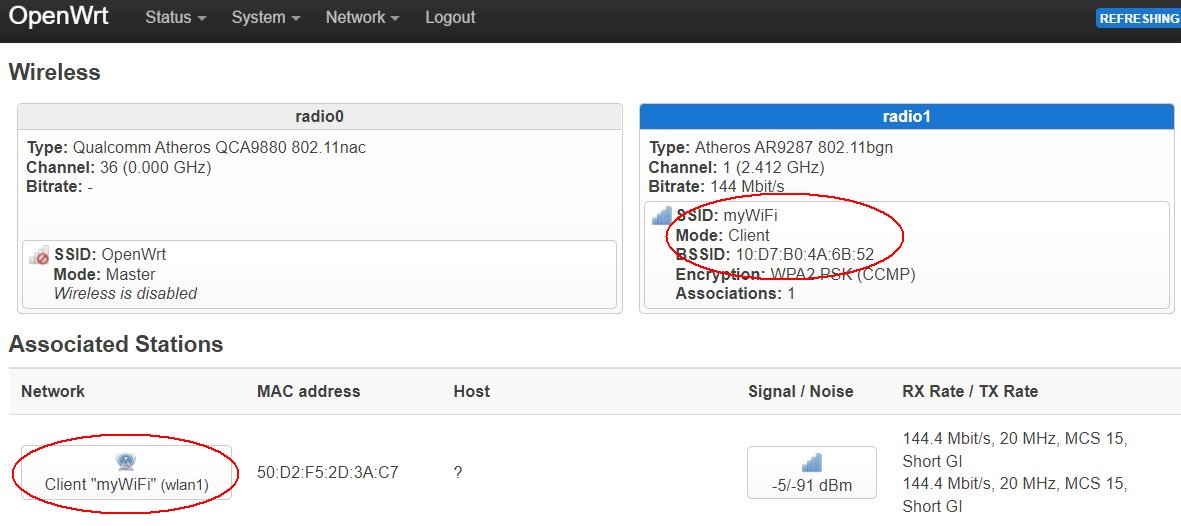
This is the final result. Note how the client network has a ? instead of a IP address.
The wwan IP address is only visible in the Network Interfaces page.
:!: This step should not be necessary if you had reset the router to OpenWrt defaults. If you have no "wan" firewall zone you must create it.
* Click on Network and then on Firewall, then click on the Add button, and set up the new zone as you see in the following screenshot (which is a default wan firewall interface),\\
/*** lede17 image 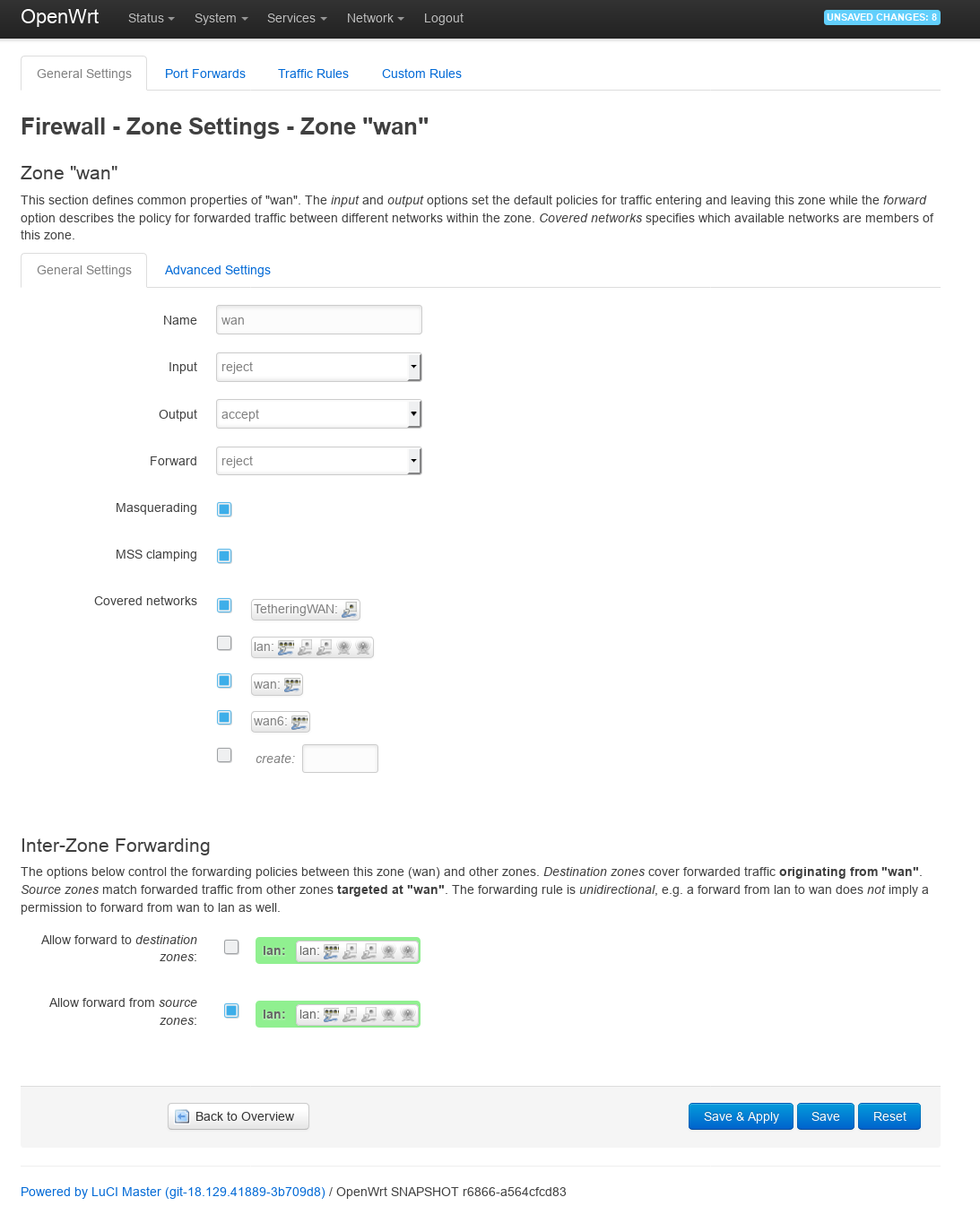
*/
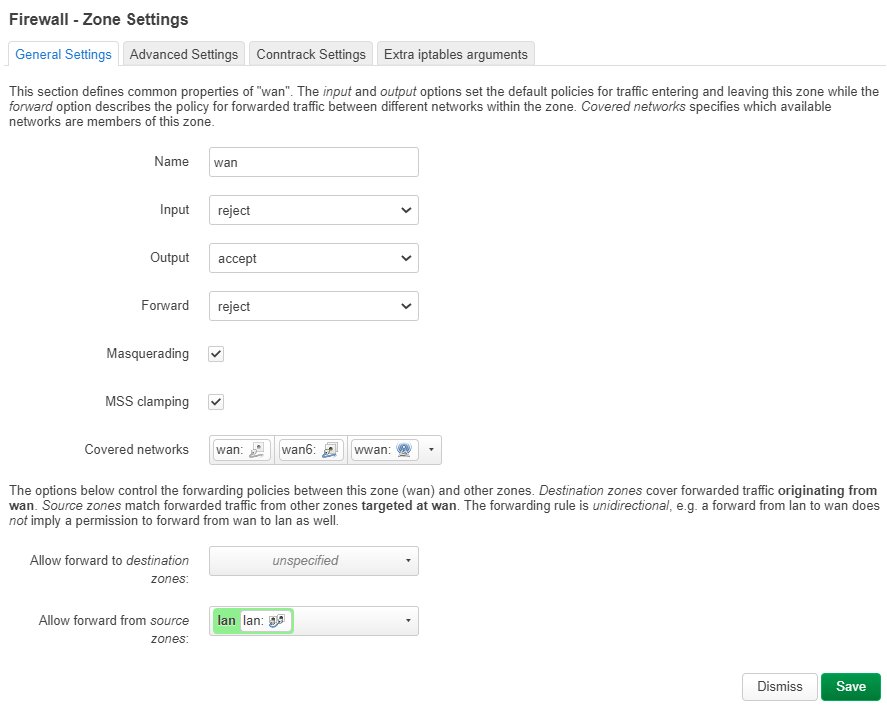
/* Note that in "Covered networks" you will probably have "lan" and "wwan" instead of the ones shown in the screenshot. My router (used for the screenshot) has WAN ethernet ports and a default wan firewall zone already, and also I'm doing a tethering with my smartphone. If you are doing this step you probably don't have either. ***/
After you have done this, go back and repeat the other steps to add and save the Wi-Fi connection.
¶ Command-line instructions
Before doing any actual configuration, the Wi-Fi interface must be enabled in order to be able to scan for networks in the vicinity:
uci set wireless.@wifi-device[0].disabled="0"
uci commit wireless
wifi
:!: if you have more than one Wi-Fi radio in your device, then you can use the others in this tutorial instead by substituting their number. For example to enable the second Wi-Fi radio (usually a 5Ghz radio) you would need to uci set wireless.@wifi-device[1].disabled=0 and then use wlan1 instead of wlan0 in the command below.
- Set the disabled option to 0 (to enable wireless)
- Save changed configuration file
- Start wireless using the wifi command
Now we can list networks in range substituting your actual wireless interface for wlan0:
iw dev
iw dev wlan0 scan
Example output:
# iw dev wlan0 scan
BSS c8:d5:fe:c8:61:b0(on wlan0) -- associated
        TSF: 24324848870 usec (0d, 06:45:24)
        freq: 2412
        beacon interval: 100 TUs
        capability: ESS (0x0411)
        signal: -72.00 dBm
        last seen: 140 ms ago
        Information elements from Probe Response frame:
        SSID: Violetta
        RSN:     * Version: 1
                 * Group cipher: CCMP
                 * Pairwise ciphers: CCMP
                 * Authentication suites: PSK
                 * Capabilities: 1-PTKSA-RC 1-GTKSA-RC (0x0000)
BSS f8:35:dd:eb:20:f8(on wlan0)
        TSF: 24225790925 usec (0d, 06:43:45)
        freq: 2457
        beacon interval: 100 TUs
        capability: ESS (0x0431)
        signal: -90.00 dBm
        last seen: 1450 ms ago
        Information elements from Probe Response frame:
        SSID: GOinternet_EB20FB
        HT capabilities:
                Capabilities: 0x11ee
                        HT20/HT40
                        SM Power Save disabled
                        RX HT20 SGI
                        RX HT40 SGI
                        TX STBC
                        RX STBC 1-stream
                        Max AMSDU length: 3839 bytes
                        DSSS/CCK HT40
                Maximum RX AMPDU length 65535 bytes (exponent: 0x003)
                Minimum RX AMPDU time spacing: 4 usec (0x05)
                HT RX MCS rate indexes supported: 0-15, 32
                HT TX MCS rate indexes are undefined
        HT operation:
                 * primary channel: 10
                 * secondary channel offset: below
                 * STA channel width: any
        RSN:     * Version: 1
                 * Group cipher: TKIP
                 * Pairwise ciphers: TKIP CCMP
                 * Authentication suites: PSK
                 * Capabilities: 1-PTKSA-RC 1-GTKSA-RC (0x0000)
In the example, there are two networks, a Wi-Fi g one called Violetta and a Wi-Fi n one called GOinternet_EB20FB. The device was configured to connect to the one called Violetta.
These are the uci values that were added or changed by the configuration procedure.
For SSID, BSSID, and encryption you must use the info you got from the Wi-Fi scan above.
For an explanation of why these values were changed, please read the luci tutorial above.
network.lan.ipaddr='192.168.2.1'
network.wwan=interface
network.wwan.proto='dhcp'
firewall.@zone[1]=zone
firewall.@zone[1].name='wwan'
firewall.@zone[1].input='REJECT'
firewall.@zone[1].output='ACCEPT'
firewall.@zone[1].forward='REJECT'
firewall.@zone[1].masq='1'
firewall.@zone[1].mtu_fix='1'
firewall.@zone[1].network='wwan'
wireless.@wifi-iface[1]=wifi-iface
wireless.@wifi-iface[1].network='wwan'
wireless.@wifi-iface[1].ssid='Violetta'
wireless.@wifi-iface[1].encryption='psk2'
wireless.@wifi-iface[1].device='radio0'
wireless.@wifi-iface[1].mode='sta'
wireless.@wifi-iface[1].bssid='C8:D5:FE:C8:61:B0'
wireless.@wifi-iface[1].key='myWifiPasswordHere'